Computer Assistance
Follow the steps below to install a remote connection app and I can connect to your computer with you.
Mac:
1. Download the installer by clicking here.
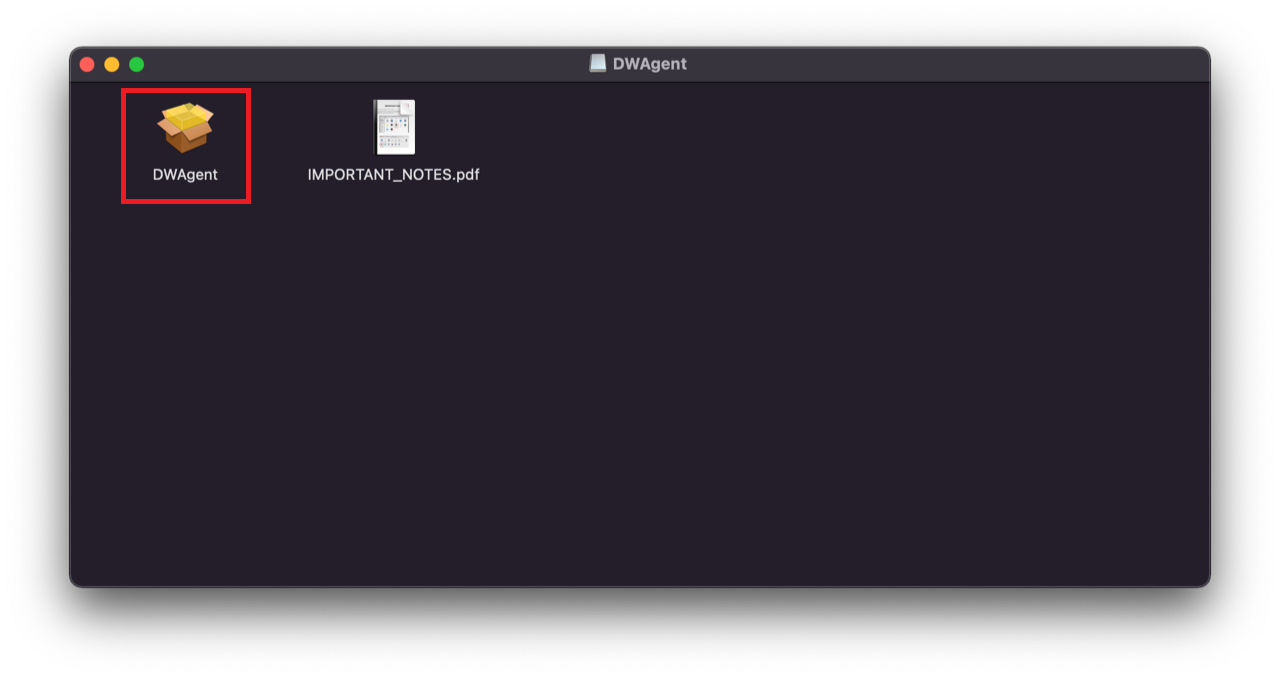
2. Click on the downloaded file, then double-click "DWAgent" to launch the app.
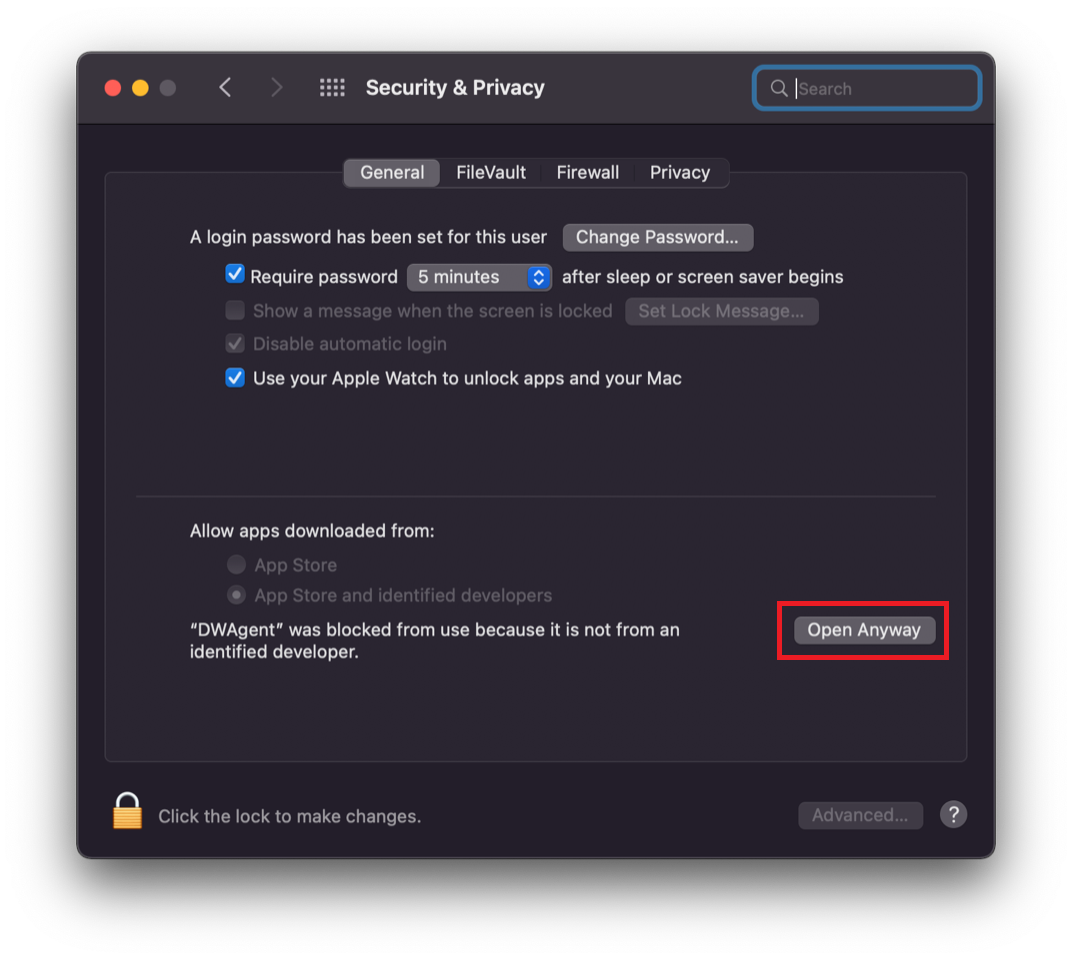
 3. You may see a window warning you that this app is from "an unauthorized developer." If that is the case, open System Preferences > Privacy and Security, click the lock to make changes, type your password, then click "Open Anyway."
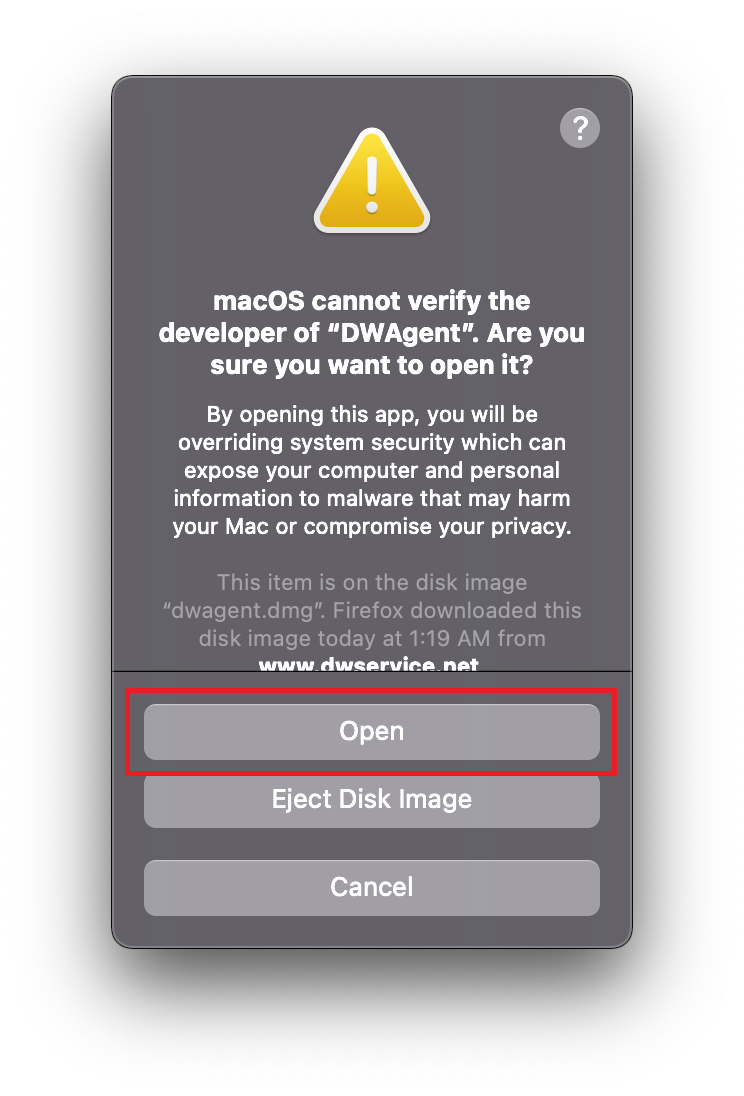
 4. Go back and double-click "DWAgent" again, then click "Open" in the pop-up window.
 5. The app should open and will ask if you'd like to install or run - select run. After it loads, you should see a "User" and "Password" field in the center.
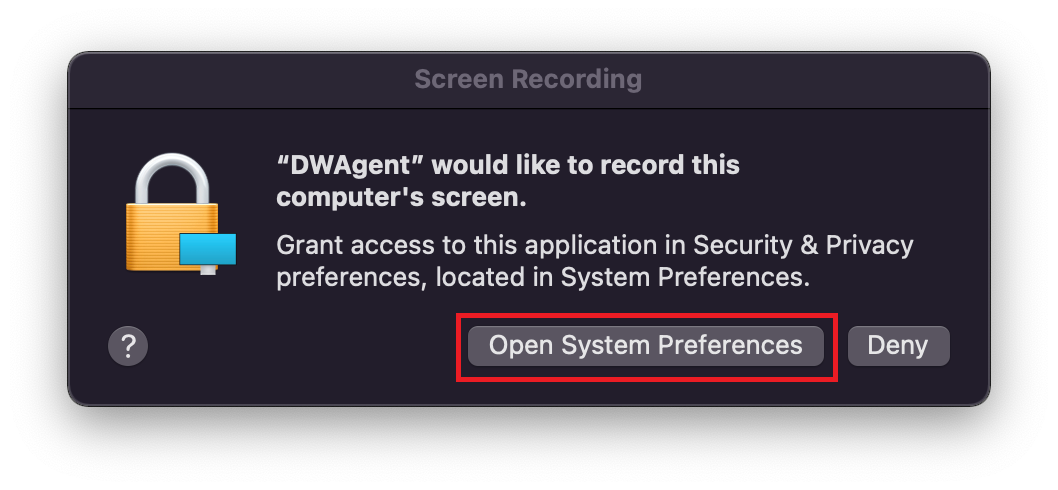
6. After we connect, you will see a prompt to allow the app to record your screen. Select "Open System Preferences."
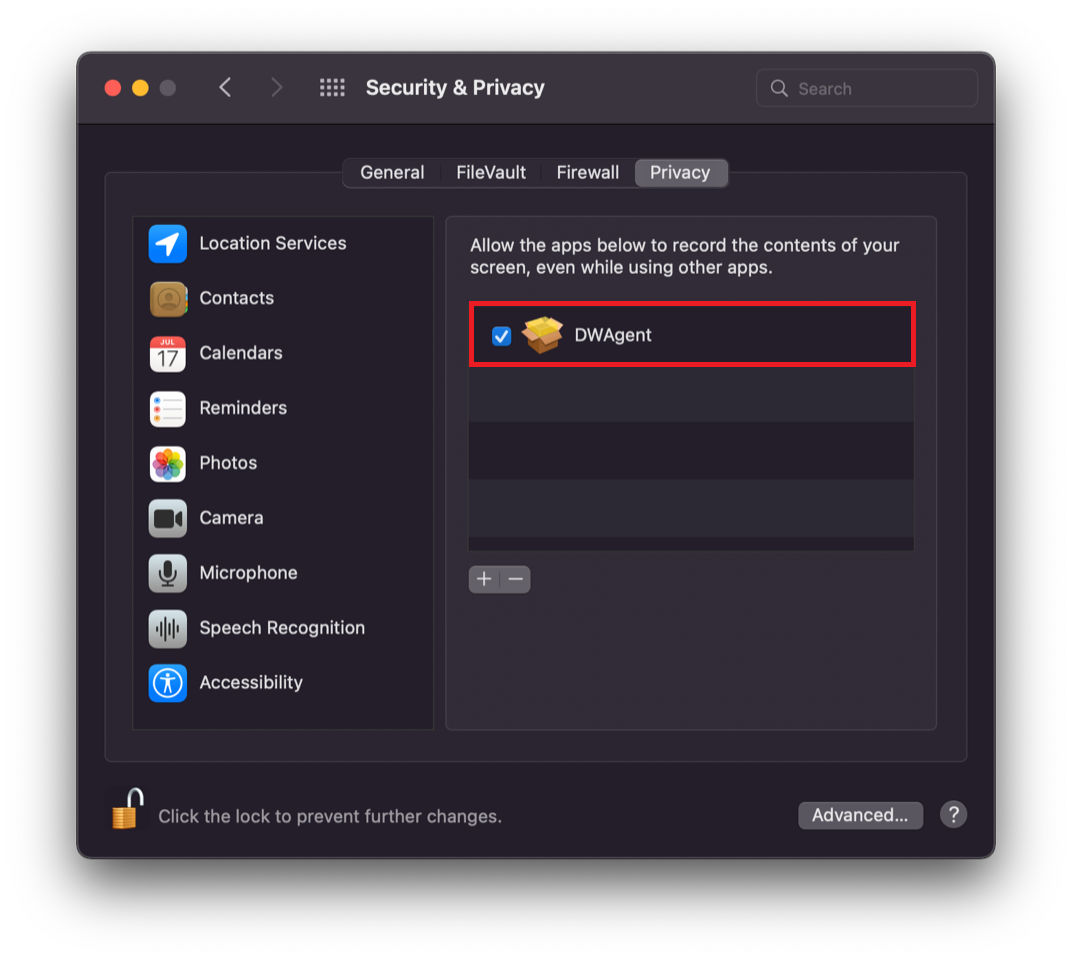
 7. Click the lock in the bottom-left corner and then enter your password to make changes.
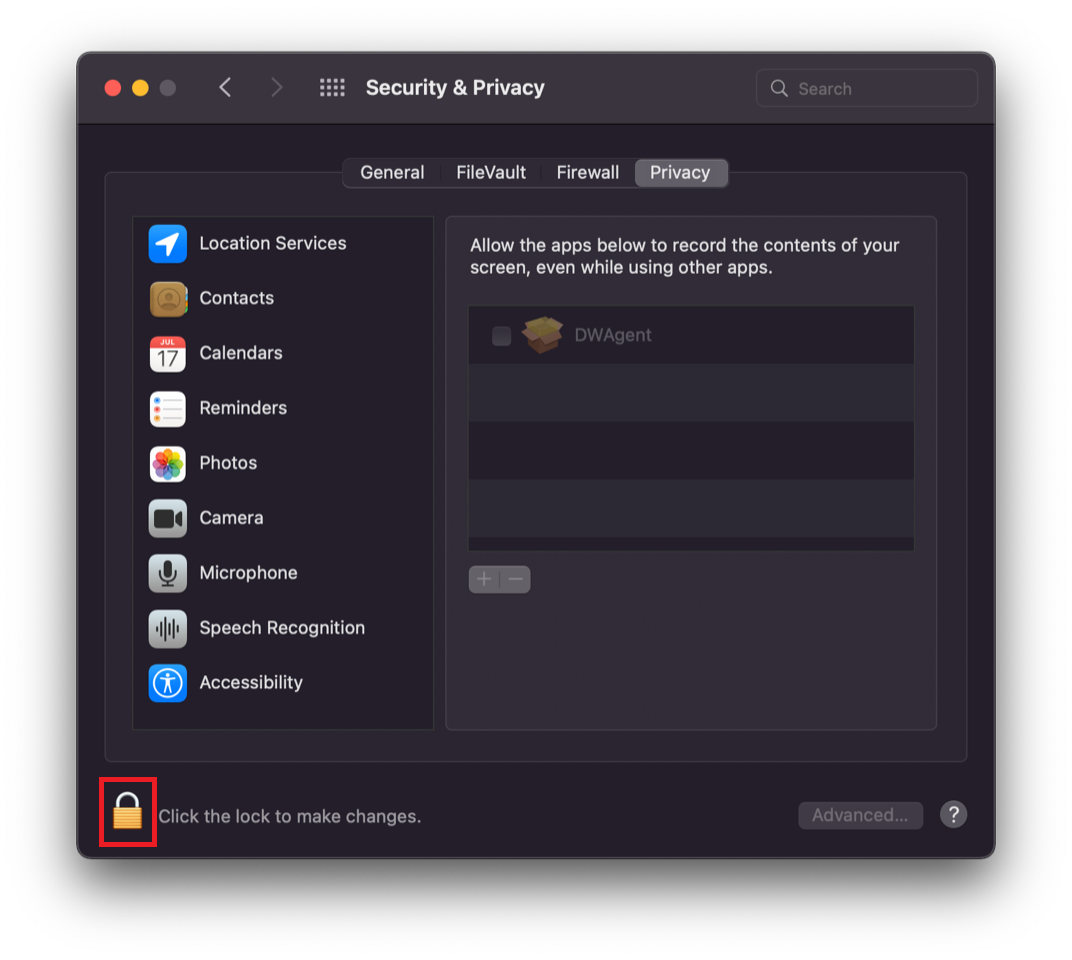 8. Once the lock is unlocked check the box next to DWAgent."
Windows:
1. Download the installer by clicking here.
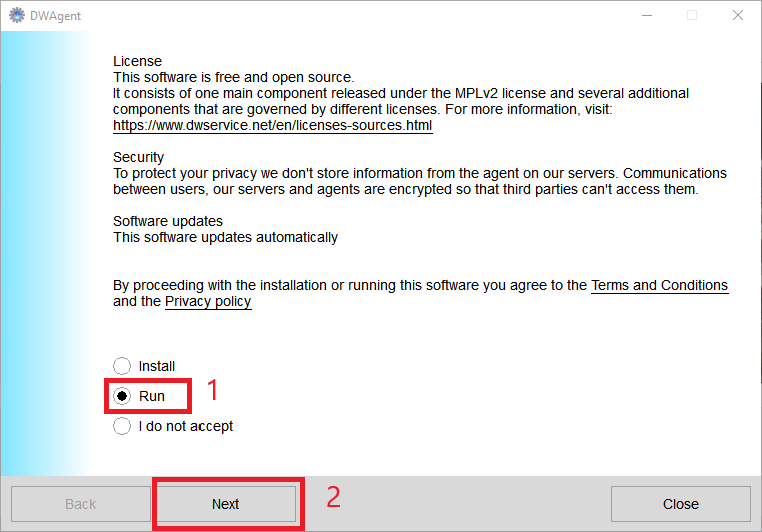
2. Click on the downloaded file, then click "Run."
3. When the installer opens, select the option to "Run," then click "Next."
 4. The app should open and you should see a "User" and "Password" field in the center.